Window manager · macOS 26 Tahoe · v1.1
Windows, where you want them.
Frame is a native window manager for macOS 26 — keyboard snaps and edge zones for halves, thirds, maximize, and multi-display. New in 1.1: per-display dead zones so maximize never lands on the strip of a monitor you can’t see. What you press is what you get.
pick a layout — the window lands exactly there. press again: same place.
What it does
Snap with the keyboard. Drag when you want.
Rectangle free-tier parity for Tahoe — layouts you already know, without surprise cycling or a Pro paywall.
⌃⌥ first
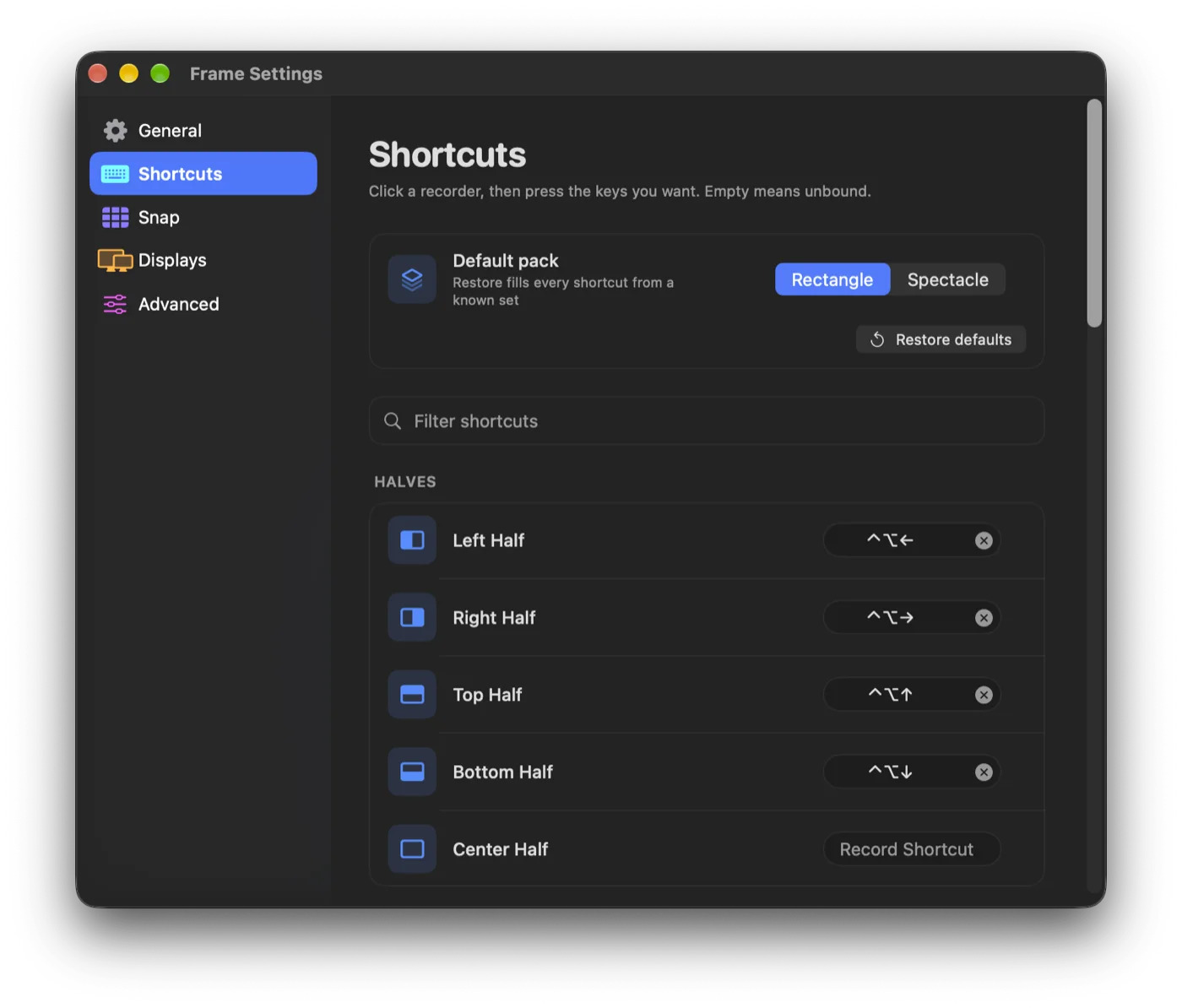
Halves, corners, thirds, maximize, center, restore, larger/smaller, and next/previous display — rebind anything in Settings.
Edge & corner zones
Drag a window to an edge or corner and a live footprint previews the landing. Drop it — it snaps where you meant.
What you press is what you get
Left half is left half. Every time. No silent size-cycling on the second press unless you turn that on yourself.
Multi-display aware
Send the front window to the next or previous display, ordered the way your monitors are arranged — not by random IDs.
Dead zones
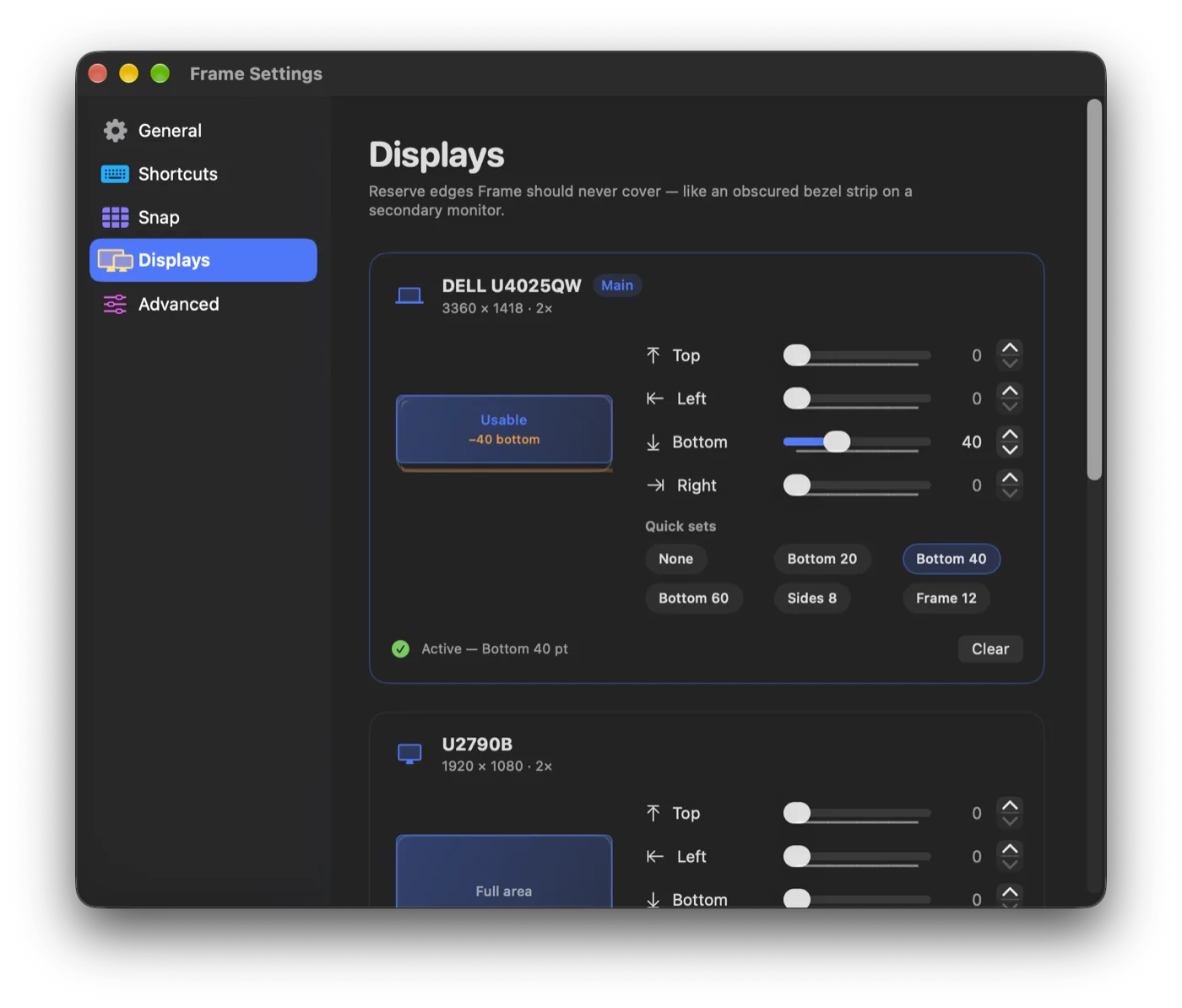
Reserve top, left, bottom, or right edges per monitor. Snaps and maximize respect the no-go strip — perfect for an obscured secondary bezel.
Modern, public APIs
Swift 6, Accessibility window moves, Sparkle auto-updates from this site. No private window-server hacks.
New in 1.1 · Dead zones
Your second monitor has a secret. Frame already knows.
That bottom strip on an external display you can’t actually see? The few pixels under a stand, a docking ledge, or a bezel macOS still thinks is usable? Frame lets you mark it as a no-go — then every snap, half, third, and maximize stays out of it.
Define the edges windows never enter.
macOS already trims the menu bar and Dock. Dead zones go further: you reserve extra edges on any connected monitor — top, left, bottom, right — and Frame’s work area shrinks so layouts never paint into the dark.
- Per monitor. Bottom 40 on the secondary only. Leave the built-in display full-bleed if you want.
- Every layout path. Hotkeys, drag-to-snap, maximize, tile, cascade — all share the same usable rect.
- Settings that feel alive. Live diagram, sliders, steppers, and quick presets (Bottom 20 / 40 / 60).
- Survives unplug. Zones stick to a display ID and show as “disconnected” until the monitor returns.
The contract
Hotkeys that do the thing.
Some managers “helpfully” cycle sizes when you hit the same shortcut again. Frame defaults to exact action — because muscle memory should not need a state machine.
You train left half into your hands. The second press becomes two-thirds. The third becomes one-third. Suddenly the window is the wrong size and you’re not sure which press you’re on.
- ✓Same key → same layout. Left half is left half on every press. Center third is center third. Always.
- ✓Key-down, not key-up. Moves start as soon as you commit — no waiting for release or Task hops.
- ✓Short AX timeout. Messaging timeout ~0.25s so a stuck window doesn’t freeze the next shortcut.
- ✓You still choose. Prefer cycle? That’s a preference later — not a surprise default.
Windows should land where you aimed. Exact action · drag zones · dead zones · multi-display — free for macOS 26.
Requirements
What it needs.
System
macOS 26 Tahoe
Built for Tahoe’s windowing stack — not a patched Mojave port.
Hardware
Apple Silicon
arm64 release. Multiple displays fully supported.
Permission
Accessibility
Required to move other apps’ windows. Nothing is logged or sent anywhere.
Price
Free
No account, no subscription. Signed, notarized, Sparkle auto-updates.
Download
Get Frame.
-
Download and open
Grab the zip, drag
Frame.appinto/Applications, and open it. Grant Accessibility when macOS asks. -
Snap something
Focus any window and press
⌃⌥ ←for left half. Drag another window to a screen edge to try zones. -
Tune the shortcuts
Open Settings from the menu bar icon. Rebind anything — Rectangle-style defaults are pre-loaded.
-
Carve dead zones
Open Settings → Displays. On the secondary monitor, try Bottom 40 — then maximize. The window stops above the strip you can’t see.
-
Forget the installer
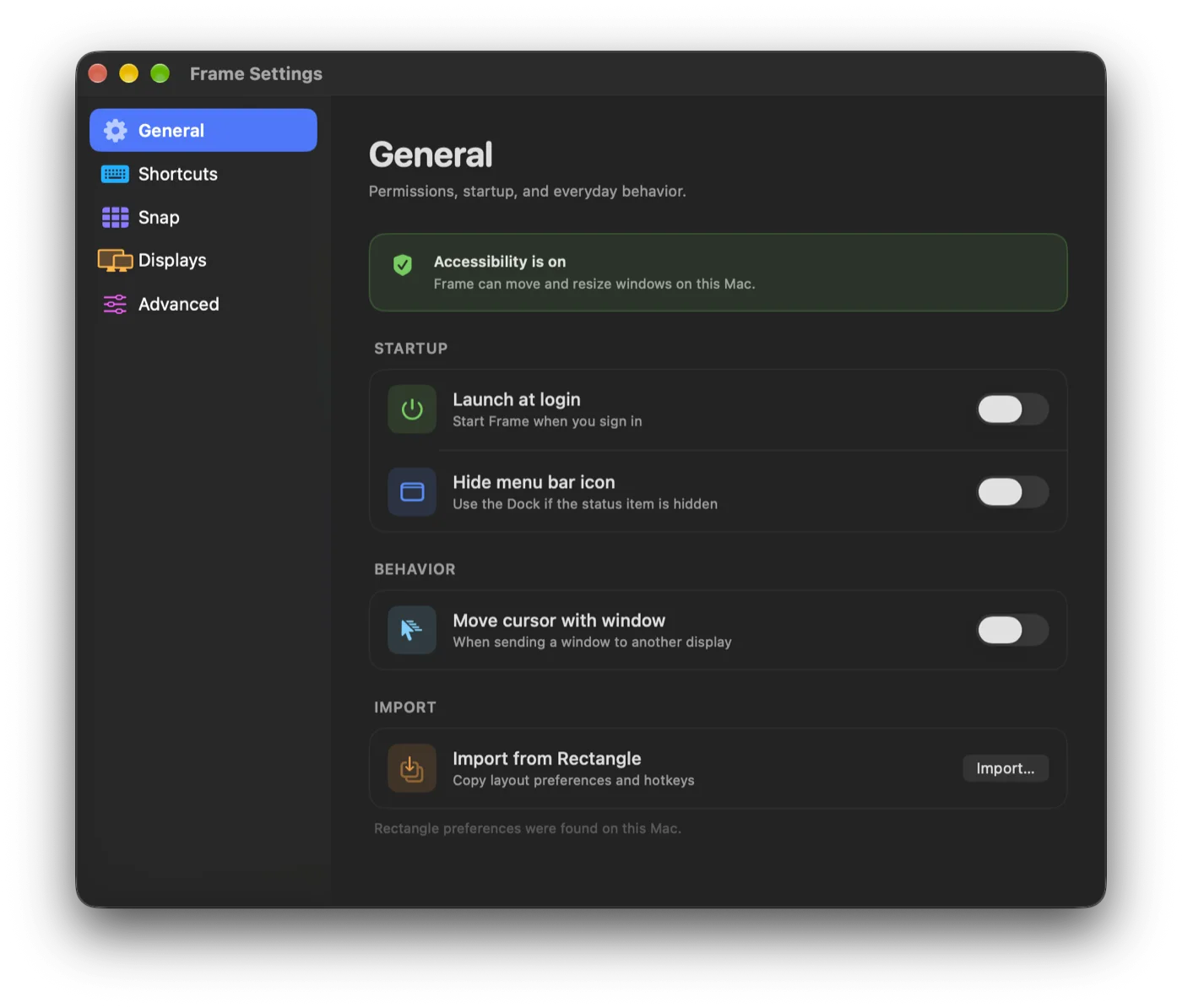
Optional launch at login. Updates arrive on their own via Sparkle from this site.